

- Node
- Ruby
- Python
- PHP
- .NET
- Java
- Go
Overview
This guide shows how to transcribe voicemail and send the transcription via SMS.Prerequisites
To get started, you need a Plivo account — sign up with your work email address if you don’t have one already. You must have a voice- and SMS-enabled Plivo phone number to receive calls and send SMS messages; you can rent numbers from the Numbers page of the Plivo console, or by using the Numbers API. If this is your first time using Plivo APIs, follow our instructions to set up a Node.js development environment and a web server and safely expose that server to the internet.Create an Express server to implement voicemail transcription
Create a file calledvoicemail.js and paste into it this code.var plivo = require('plivo');
var express = require('express');
var bodyParser = require('body-parser');
var app = express();
app.use(bodyParser.urlencoded({
extended: true
}));
app.set('port', (process.env.PORT || 5000));
app.post('/voicemail/', function(request, response) {
var res = plivo.Response();
res.addSpeak('Please leave a message. Press the star key when you\'re done');
var params = {
'transcriptionType': 'auto',
'transcriptionUrl': request.protocol + '://' + request.headers.host + '/transcription-url/',
'action': request.protocol + '://' + request.headers.host + '/action-url/',
'finishOnKey': "*",
'maxLength': "20"
};
res.addRecord(params);
res.addSpeak('Recording not received');
response.set({
'Content-Type': 'text/xml'
});
response.send(res.toXML());
});
app.post('/transcription-url/', function(request, response) {
console.log(request.body);
var client = new plivo.Client("<auth_id>", "<auth_token>");
client.messages.create(
{
src: "<sender_id>",
dst: "<destination_number>",
text: "You have a new transcription: "+ request.body.transcription,
}).then(function(message_created) {
console.log(message_created)
});
response.status(200).send('OK')
});
app.post('/action-url/', function(request, response) {
console.log(request.body);
response.status(200).send('OK')
});
app.listen(app.get('port'), function() {
console.log('Node app is running on port', app.get('port'));
});
Note: We recommend that you store your credentials in the
auth_id and auth_token environment variables, to avoid the possibility of accidentally committing them to source control. If you do this, you can initialize the client with no arguments and Plivo will automatically fetch the values from the environment variables. You can use process.env to store environment variables and fetch them when initializing the client.$ node voicemail.js
Create a Plivo application for voicemail transcription
Associate the Express server you created with Plivo by creating a Plivo application. Visit Voice > Applications in the Plivo console and click on Add New Application, or use Plivo’s Application API.Give your application a name — we called oursVoicemail-Transcription. Enter the server URL you want to use (for example https://<yourdomain>.com/voicemail/) in the Answer URL field and set the method to POST. Click Create Application to save your application.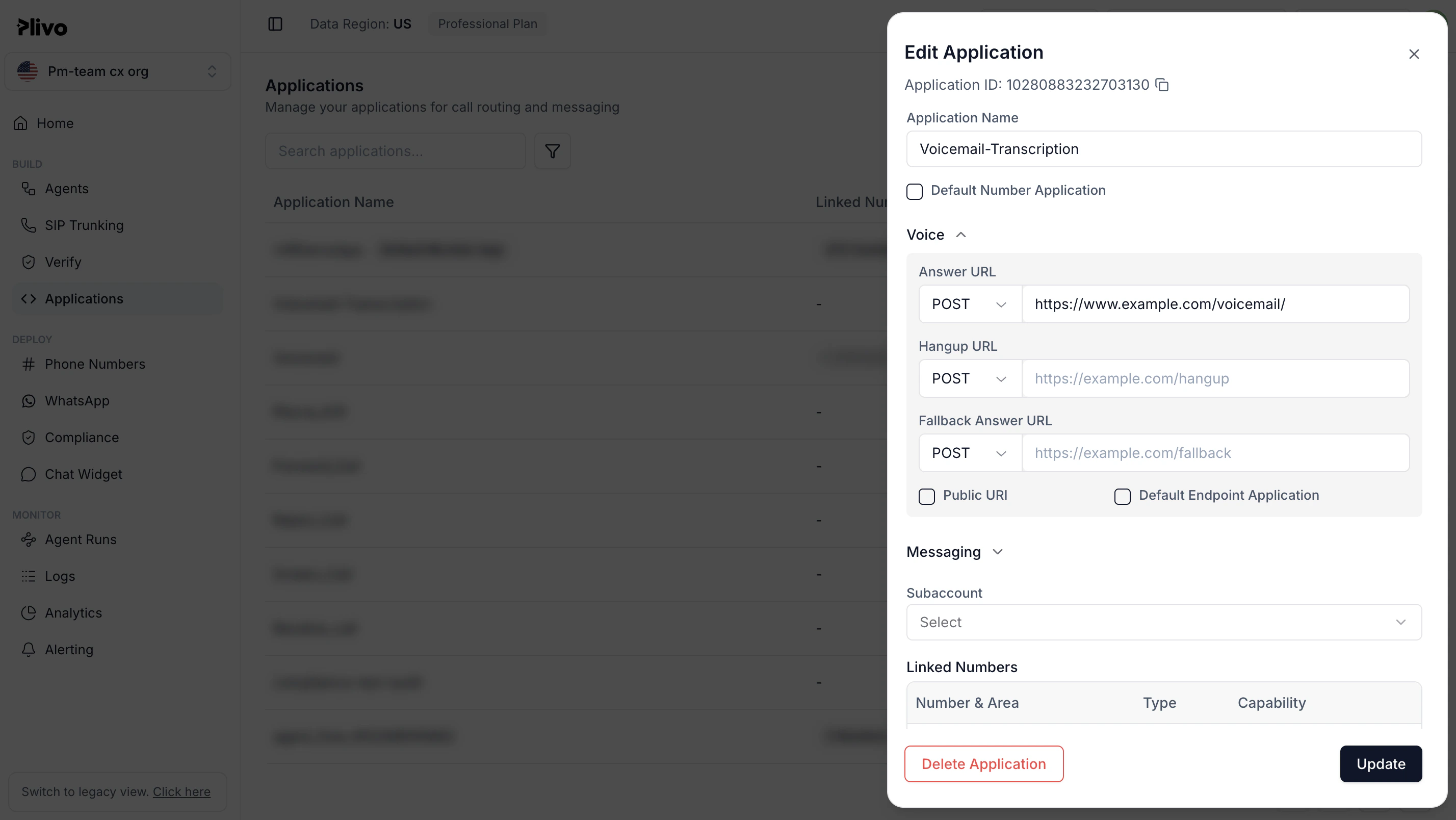
Assign a Plivo number to your application
Navigate to the Numbers page and select the phone number you want to use for this application.From the Application Type drop-down, selectXML Application.From the Plivo Application drop-down, select Voicemail-Transcription (the name we gave the application).Click Update Number to save.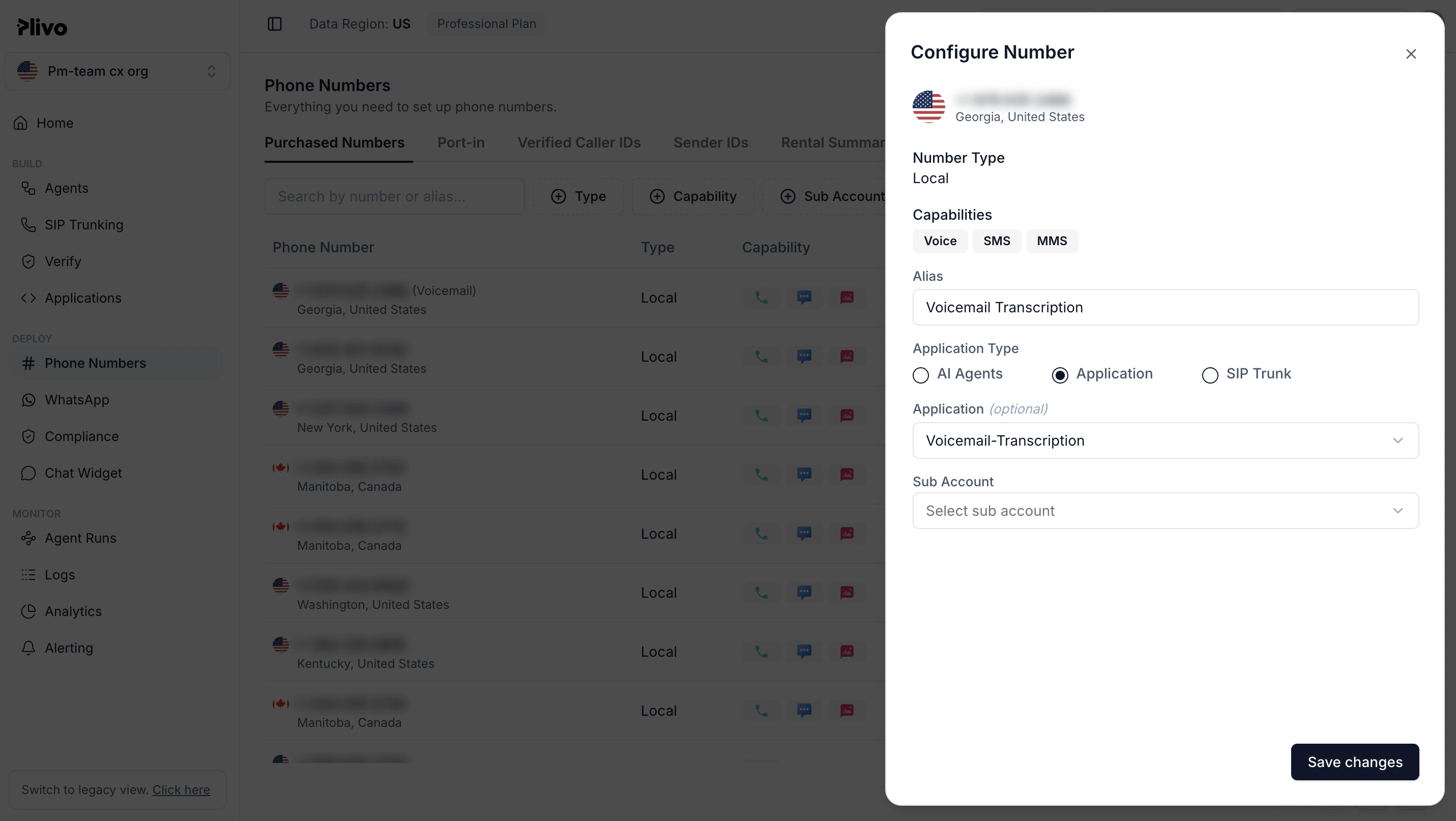
Test
Make a call to your Plivo number and leave yourself a voicemail message. You should receive a text message with the transcription.Note: If you’re using a Plivo Trial account, you can send SMS messages only to phone numbers that have been verified with Plivo. You can verify (sandbox) a number by going to the console’s Phone Numbers > Sandbox Numbers page.
Overview
This guide shows how to transcribe voicemail and send the transcription via SMS.Prerequisites
To get started, you need a Plivo account — sign up with your work email address if you don’t have one already. You must have a voice- and SMS-enabled Plivo phone number to receive calls and send SMS messages; you can rent numbers from the Numbers page of the Plivo console, or by using the Numbers API. If this is your first time using Plivo APIs, follow our instructions to set up a Ruby development environment and a web server and safely expose that server to the internet.Create a Rails controller to implement voicemail transcription
Change to the project directory and run this command to create a Rails controller for inbound calls.$ rails generate controller Plivo voice
$ rm app/views/plivo/voice.html.erb
include Plivo
include Plivo::XML
include Plivo::Exceptions

class PlivoController < ApplicationController
  skip_before_action :verify_authenticity_token
	def voicemail
		response = Response.new
		response.addSpeak('Please leave a message after the beep. Press the star key when you\'re done.')
		params = {
      		transcriptionType: 'auto',
      		transcriptionUrl: url_for(action: 'transcriptionUrl', controller: 'plivo', only_path: false, protocol: 'https'),
			action: url_for(action: 'actionUrl', controller: 'plivo', only_path: false, protocol: 'https'),
			maxLength: '30',
			finishOnKey: '*'
		}
		response.addRecord(params)

		second_speak_body = 'Recording not received.'
		response.addSpeak(second_speak_body)
				xml = PlivoXML.new(response)
		render xml: xml.to_xml
	end

  def transcriptionUrl
    response = params
		api = RestClient.new("<auth_id>","<auth_token>")
		message_response = api.messages.create(
			src: "<sender_id>",
			dst: "<destination_number>",
			text: "You have a new transcription: "+params[:transcription]
		)
		puts message_response
		puts response
    render status: :ok, json: @controller.to_json
  end

  def actionUrl
    response = params
    puts response
    render status: :ok , json: @controller.to_json
  end
end
Add a route
To add a route for the inbound function in the PlivoController class, edit config/routes.rb and add this line after the inbound route. post 'plivo/voicemail'
post 'plivo/transcriptionUrl'
post 'plivo/actionUrl'
$ rails server
Note: For ngrok testing, add this line to config/environments/development.rb.
config.hosts << /[a-z0-9-]+\.ngrok\.io/Create a Plivo application for voicemail transcription
Associate the Rails controller you created with Plivo by creating a Plivo application. Visit Voice > Applications in the Plivo console and click on Add New Application, or use Plivo’s Application API.Give your application a name — we called oursVoicemail-Transcription. Enter the server URL you want to use (for example https://<yourdomain>.com/voicemail/) in the Answer URL field and set the method to POST. Click Create Application to save your application.Assign a Plivo number to your application
Navigate to the Numbers page and select the phone number you want to use for this application.From the Application Type drop-down, selectXML Application.From the Plivo Application drop-down, select Voicemail-Transcription (the name we gave the application).Click Update Number to save.Test
Make a call to your Plivo number and leave yourself a voicemail message. You should receive a text message with the transcription.Note: If you’re using a Plivo Trial account, you can send SMS messages only to phone numbers that have been verified with Plivo. You can verify (sandbox) a number by going to the console’s Phone Numbers > Sandbox Numbers page.
Overview
This guide shows how to transcribe voicemail and send the transcription via SMS.Prerequisites
To get started, you need a Plivo account — sign up with your work email address if you don’t have one already. You must have a voice- and SMS-enabled Plivo phone number to receive calls and send SMS messages; you can rent numbers from the Numbers page of the Plivo console, or by using the Numbers API. If this is your first time using Plivo APIs, follow our instructions to set up a Python development environment and a web server and safely expose that server to the internet.Create a Flask server to implement voicemail transcription
Create a file calledvoicemail.py and paste into it this code.from flask import Flask, Response, url_for, request
import json
import plivo
from plivo import plivoxml
app = Flask(__name__)
@app.route('/voicemail/', methods=['GET', 'POST'])
def voicemail():
response = plivoxml.ResponseElement()
response.add(plivoxml.SpeakElement("Please leave a message. Press the star key when you\'re done"))
response.add(plivoxml.RecordElement(transcription_type='auto',
transcription_url=url_for('transcription_url',
_external=True), action=url_for('action_url',
_external=True), max_length=30, finish_on_key='*'))
response.add(plivoxml.SpeakElement('Recording not received'))
return Response(response.to_string(), mimetype='application/xml')
@app.route('/transcription-url/', methods=['GET', 'POST'])
def transcription_url():
form_values = json.dumps(request.form, indent=4)
print form_values
client = plivo.RestClient('<auth_id>', '<auth_token>')
response = client.messages.create(src='<sender_id>',
dst='<destination_number>',
text='You have a new transcription: '+ request.form['transcription'])
print response
return ('OK', 200)
@app.route('/action-url/', methods=['GET', 'POST'])
def action_url():
form_values = json.dumps(request.form, indent=4)
print form_values
return ('OK', 200)
if __name__ == '__main__':
app.run(host='0.0.0.0', debug=True)
Note: We recommend that you store your credentials in the
auth_id and auth_token environment variables, to avoid the possibility of accidentally committing them to source control. If you do this, you can initialize the client with no arguments and Plivo will automatically fetch the values from the environment variables. You can use os module(os.environ) to store environment variables and fetch them when initializing the client.$ python voicemail.py
Create a Plivo application for voicemail transcription
Associate the Flask server you created with Plivo by creating a Plivo application. Visit Voice > Applications in the Plivo console and click on Add New Application, or use Plivo’s Application API.Give your application a name — we called oursVoicemail-Transcription. Enter the server URL you want to use (for example https://<yourdomain>.com/voicemail/) in the Answer URL field and set the method to POST. Click Create Application to save your application.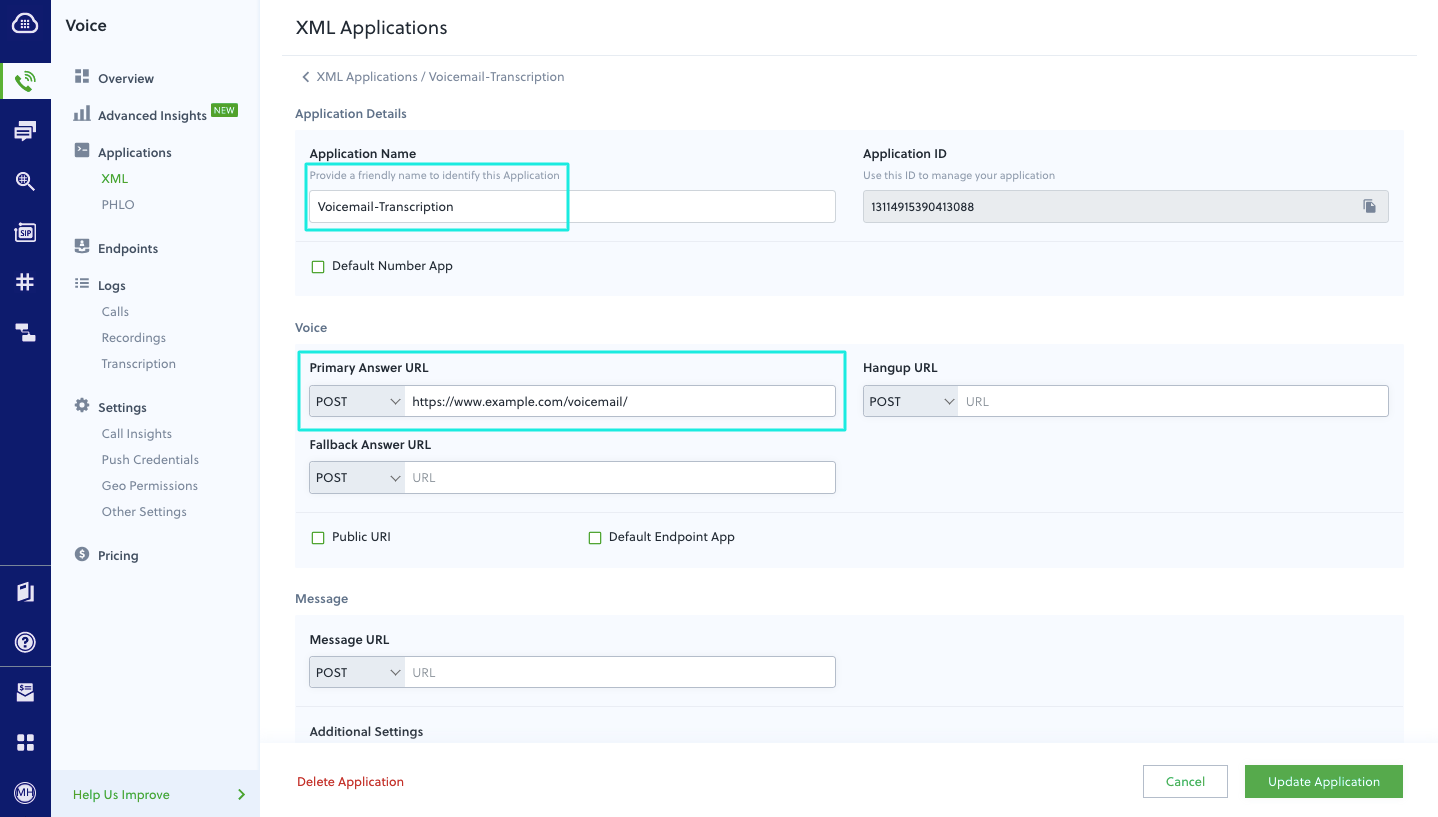
Assign a Plivo number to your application
Navigate to the Numbers page and select the phone number you want to use for this application.From the Application Type drop-down, selectXML Application.From the Plivo Application drop-down, select Voicemail-Transcription (the name we gave the application).Click Update Number to save.Test
Make a call to your Plivo number and leave yourself a voicemail message. You should receive a text message with the transcription.Note: If you’re using a Plivo Trial account, you can send SMS messages only to phone numbers that have been verified with Plivo. You can verify (sandbox) a number by going to the console’s Phone Numbers > Sandbox Numbers page.
Overview
This guide shows how to transcribe voicemail and send the transcription via SMS.Prerequisites
To get started, you need a Plivo account — sign up with your work email address if you don’t have one already. You must have a voice- and SMS-enabled Plivo phone number to receive calls and send SMS messages; you can rent numbers from the Numbers page of the Plivo console, or by using the Numbers API. If this is your first time using Plivo APIs, follow our instructions to set up a PHP development environment and a web server and safely expose that server to the internet.Create a Laravel controller to implement voicemail transcription
Change to the project directory run this command to create a Laravel controller for inbound calls.$ php artisan make:controller VoicemailController
<?php

namespace App\Http\Controllers;
use Plivo\XML\Response;
use Plivo\RestClient;
use Illuminate\Http\Request;

class VoicemailController extends Controller
{
    public function voicemailMain()
    {
    $host = request()->getHttpHost();
      $response = new Response();

      $response->addSpeak("Please leave a message. Press the star key when you're done");

      $params = array(
         'transcriptionType'=>"auto",
         'transcriptionUrl'=>"https://".$host."/transcriptionUrl",
         'action' => "https://".$host."/actionUrl",
         'finishOnKey' => "*",
         'maxLength' => "20"
      );

      $response->addRecord($params);

      $second_speak_body = "Recording not received";
      $response->addSpeak($second_speak_body);
      Header('Content-type: text/xml');
      echo ($response->toXML());
    }

    public function actionUrl(Request $request)
    {
        return $request->all();
    }
    public function transcriptionUrl(Request $request)
    {
        $client = new RestClient("<auth_id>","<auth_token>");
        $response = $client->messages->create(
        [
            "src" => "<sender_id>",
            "dst" => "<destination_number>",
            "text"  =>"You have a new transcription: ".$_REQUEST["transcription"],
        ]
        );
        print_r($response);
        return $request->all();
    }
}
Add a route
To add a route for the inbound function in the VoicemailController class, edit routes/web.php file and add this line.Route::match(['get', 'post'], '/voicemail', 'App\Http\Controllers\VoicemailController@voicemailMain');
Route::match(['get', 'post'], '/actionUrl', 'App\Http\Controllers\VoicemailController@actionUrl');
Route::match(['get', 'post'], '/transcriptionUrl', 'App\Http\Controllers\VoicemailController@transcriptionUrl');
$ php artisan serve
Note: For ngrok test, add this line to mylaravelapp/quickstart/app/Http/Middleware/VerifyCsrfToken.php.
protected $except = ['*'];Create a Plivo application for voicemail transcription
Associate the Laravel controller you created with Plivo by creating a Plivo application. Visit Voice > Applications in the Plivo console and click on Add New Application, or use Plivo’s Application API.Give your application a name — we called oursVoicemail-Transcription. Enter the server URL you want to use (for example https://<yourdomain>.com/voicemail/) in the Answer URL field and set the method to POST. Click Create Application to save your application.Assign a Plivo number to your application
Navigate to the Numbers page and select the phone number you want to use for this application.From the Application Type drop-down, selectXML Application.From the Plivo Application drop-down, select Voicemail-Transcription (the name we gave the application).Click Update Number to save.Test
Make a call to your Plivo number and leave yourself a voicemail message. You should receive a text message with the transcription.Note: If you’re using a Plivo Trial account, you can send SMS messages only to phone numbers that have been verified with Plivo. You can verify (sandbox) a number by going to the console’s Phone Numbers > Sandbox Numbers page.
Overview
This guide shows how to transcribe voicemail and send the transcription via SMS.Prerequisites
To get started, you need a Plivo account — sign up with your work email address if you don’t have one already. You must have a voice- and SMS-enabled Plivo phone number to receive calls and send SMS messages; you can rent numbers from the Numbers page of the Plivo console, or by using the Numbers API. If this is your first time using Plivo APIs, follow our instructions to set up a .NET development environment and a web server and safely expose that server to the internet.Create an MVC controller to implement voicemail transcription
In Visual Studio, create a controller calledVoicemailController.cs and paste into it this code.using System;
using Plivo;
using System.Collections.Generic;
using Microsoft.AspNetCore.Mvc;
namespace VoiceApp.Controllers
{
public class Voicemail : Controller
{
public IActionResult Index()
{
var hostName = Request.HttpContext.Request.Host.Value;
Plivo.XML.Response resp = new Plivo.XML.Response();
resp.AddSpeak("Please leave a message. Press the star key when you're done",
new Dictionary<string, string>() { });
resp.AddRecord(new Dictionary<string, string>() {
{"transcriptionType","auto" },
{"transcriptionUrl","https://" + hostName + "/Voicemail/TranscriptionUrl/" },
{"action", "https://" + hostName + "/Voicemail/ActionUrl/"},
{"finishOnKey", "*"},
{"maxLength", "20"},
});
resp.AddSpeak("Recording not received",
new Dictionary<string, string>() { });
var output = resp.ToString();
return this.Content(output, "text/xml");
}
public IActionResult ActionUrl()
{
Console.WriteLine(Request.Form);
return this.Content("OK");
}
public IActionResult TranscriptionUrl()
{
Console.WriteLine(Request.Form);
var api = new PlivoApi("<auth_id>", "<auth_token>");
var response = api.Message.Create(
src: "<sender_id>",
dst: new List<String> { "<destination_number>" },
text: "You have a new transcription: "+ Request.Form["transcription"]
);
Console.WriteLine(response);
return this.Content("OK");
}
}
}
"applicationUrl": "http://localhost:5000/"
Create a Plivo application for voicemail transcription
Associate the MVC controller you created with Plivo by creating a Plivo application. Visit Voice > Applications in the Plivo console and click on Add New Application, or use Plivo’s Application API.Give your application a name — we called oursVoicemail-Transcription. Enter the server URL you want to use (for example https://<yourdomain>.com/voicemail/) in the Answer URL field and set the method to POST. Click Create Application to save your application.Assign a Plivo number to your application
Navigate to the Numbers page and select the phone number you want to use for this application.From the Application Type drop-down, selectXML Application.From the Plivo Application drop-down, select Voicemail-Transcription (the name we gave the application).Click Update Number to save.Test
Make a call to your Plivo number and leave yourself a voicemail message. You should receive a text message with the transcription.Note: If you’re using a Plivo Trial account, you can send SMS messages only to phone numbers that have been verified with Plivo. You can verify (sandbox) a number by going to the console’s Phone Numbers > Sandbox Numbers page.
Overview
This guide shows how to transcribe voicemail and send the transcription via SMS.Prerequisites
To get started, you need a Plivo account — sign up with your work email address if you don’t have one already. You must have a voice- and SMS-enabled Plivo phone number to receive calls and send SMS messages; you can rent numbers from the Numbers page of the Plivo console, or by using the Numbers API. If this is your first time using Plivo APIs, follow our instructions to set up a Java development environment and a web server and safely expose that server to the internet.Create a Spring application to implement voicemail transcription
Create a Java class calledVoicemailApplication and paste into it this code.package com.example.voicemail;
import com.plivo.api.Plivo;
import com.plivo.api.exceptions.PlivoRestException;
import com.plivo.api.exceptions.PlivoValidationException;
import com.plivo.api.exceptions.PlivoXmlException;
import com.plivo.api.models.message.Message;
import com.plivo.api.models.message.MessageCreateResponse;
import com.plivo.api.xml.Record;
import com.plivo.api.xml.Response;
import com.plivo.api.xml.Speak;
import org.springframework.boot.SpringApplication;
import org.springframework.boot.autoconfigure.SpringBootApplication;
import org.springframework.http.HttpStatus;
import org.springframework.web.bind.annotation.*;
import javax.servlet.http.HttpServletRequest;
import java.io.IOException;
@RestController
@SpringBootApplication
public class VoicemailApplication {
public static void main(String[] args) {
SpringApplication.run(VoicemailApplication.class, args);
}
@PostMapping(value = "/voicemail", produces = {"text/xml"})
public String voiceMail(HttpServletRequest request) throws PlivoXmlException, PlivoValidationException {
String hostName = request.getRequestURL().toString();
Response response = new Response()
.children(
new Speak("Please leave a message. Press the star key when you're done"),
new Record(hostName + "action-url")
.transcriptionType("auto")
.transcriptionUrl(hostName + "transcription-url")
.finishOnKey("*")
.maxLength(20));
response.children(new Speak("Recording not received"));
return response.toXmlString();
}
@PostMapping("voicemail/transcription-url")
@ResponseStatus(code = HttpStatus.OK)
public String TranscriptionBody(String call_uuid, String duration, String recording_id, String transcription, String transcription_charge, String transcription_rate) {
System.out.println("callUuid:"+ call_uuid + "\n" + "duration:"+duration + "\n" + "recordingId:"+recording_id +"\n"+ "transcription:"+transcription + "\n" + "transcriptionCharge:"+transcription_charge + "\n" + "transcription_rate:"+transcription_rate + "\n");
Plivo.init("<auth_id>","<auth_token>");
try {
MessageCreateResponse response = Message.creator("<sender_id>", "<destination_number>",
"You have a new transcription: "+transcription)
.create();
System.out.println(response);
}
catch (PlivoRestException | IOException e)
{
e.printStackTrace();
}
return "OK";
}
@PostMapping("voicemail/action-url")
@ResponseStatus(code = HttpStatus.OK)
public String ActionBody(String BillRate,String CallStatus,String CallUUID,String CallerName,String Digits,String Direction,String Event,String From,String ParentAuthID,String RecordFile,String RecordUrl,String RecordingDuration,String RecordingDurationMs,String RecordingEndMs,String RecordingID,String RecordingStartMs,String SessionStart,String To) {
System.out.println("billRate:"+ BillRate+"\n"+"callStatus:"+ CallStatus+"\n"+"callUUID:"+ CallUUID+"\n"+"callerName:"+ CallerName+"\n"+"digits:"+ Digits+"\n"+"direction:"+ Direction+"\n"+"event:"+ Event+"\n"+"From:"+ From+"\n"+"parentAuthID:"+"\n"+ParentAuthID+"\n"+"recordFile:"+ RecordFile+"\n"+"recordUrl:"+ RecordUrl+"\n"+"recordingDuration:"+ RecordingDuration+"\n"+"recordingDurationMs:"+ RecordingDurationMs+"\n"+"recordingEndMs:"+ RecordingEndMs+"\n"+"recordingID:"+ RecordingID+"\n"+"recordingStartMs:"+ RecordingStartMs+"\n"+"sessionStart:"+ SessionStart+"\n"+"To:"+ To);
return "OK";
}
}
Note: We recommend that you store your credentials in the
auth_id and auth_token environment variables, to avoid the possibility of accidentally committing them to source control. If you do this, you can initialize the client with no arguments and Plivo will automatically fetch the values from the environment variables. You can use System.getenv() to store environment variables and retrieve them when initializing the client.Create a Plivo application for voicemail transcription
Associate the Spring application you created with Plivo by creating a Plivo application. Visit Voice > Applications in the Plivo console and click on Add New Application, or use Plivo’s Application API.Give your application a name — we called oursVoicemail-Transcription. Enter the server URL you want to use (for example https://<yourdomain>.com/voicemail/) in the Answer URL field and set the method to POST. Click Create Application to save your application.Assign a Plivo number to your application
Navigate to the Numbers page and select the phone number you want to use for this application.From the Application Type drop-down, selectXML Application.From the Plivo Application drop-down, select Voicemail-Transcription (the name we gave the application).Click Update Number to save.Test
Make a call to your Plivo number and leave yourself a voicemail message. You should receive a text message with the transcription.Note: If you’re using a Plivo Trial account, you can send SMS messages only to phone numbers that have been verified with Plivo. You can verify (sandbox) a number by going to the console’s Phone Numbers > Sandbox Numbers page.
Overview
This guide shows how to transcribe voicemail and send the transcription via SMS.Prerequisites
To get started, you need a Plivo account — sign up with your work email address if you don’t have one already. You must have a voice- and SMS-enabled Plivo phone number to receive calls and send SMS messages; you can rent numbers from the Numbers page of the Plivo console, or by using the Numbers API. If this is your first time using Plivo APIs, follow our instructions to set up a Go development environment and a web server and safely expose that server to the internet.Create a Go server to implement voicemail transcription
Create a file calledvoicemail.go and paste into it this code.package main
import (
"fmt"
"log"
"strings"
"github.com/gin-gonic/gin"
"github.com/plivo/plivo-go"
"github.com/plivo/plivo-go/v7/xml"
)
func main() {
r := gin.Default()
r.POST("/voicemail", func(c *gin.Context) {
c.Header("Content-Type", "application/xml")
response := xml.ResponseElement{
Contents: []interface{}{
new(xml.SpeakElement).
AddSpeak("Please leave a message. Press the star key when you're done"),
new(xml.RecordElement).
SetTranscriptionType("auto").
SetTranscriptionUrl("https://" + c.Request.Host + "/transcription-url").
SetAction("https://" + c.Request.Host + "/action-url").
SetFinishOnKey("*").
SetMaxLength(20),
new(xml.SpeakElement).
AddSpeak("Recording not received"),
},
}
c.String(200, response.String())
})
r.POST("/transcription-url", func(c *gin.Context) {
c.Header("Content-Type", "application/xml")
c.MultipartForm()
for key, value := range c.Request.PostForm {
log.Printf("%v = %v \n", key, value)
}
client, err := plivo.NewClient("<auth_id>", "<auth_token>", &plivo.ClientOptions{})
if err != nil {
fmt.Print("Error", err.Error())
return
}
response, err := client.Messages.Create(
plivo.MessageCreateParams{
Src: "<sender_id>",
Dst: "<destination_number>",
Text: strings.Join(c.Request.PostForm["transcription"], "You have a new transcription"),
},
)
if err != nil {
fmt.Print("Error", err.Error())
return
}
fmt.Printf("Response: %#v\n", response)
})
r.POST("/action-url", func(c *gin.Context) {
c.Header("Content-Type", "application/xml")
c.MultipartForm()
for key, value := range c.Request.PostForm {
log.Printf("%v = %v \n", key, value)
}
})
r.Run() // listen and serve on 0.0.0.0:8080 (for windows "localhost:8080")
}
We recommend that you store your credentials in the
auth_id and auth_token environment variables, to avoid the possibility of accidentally committing them to source control. If you do this, you can initialize the client with no arguments and Plivo will automatically fetch the values from the environment variables. You can use os.Setenv and os.Getenv functions to store environment variables and fetch them when initializing the client.$ go run voicemail.go
Create a Plivo application for voicemail transcription
Associate the Go application you created with Plivo by creating a Plivo application. Visit Voice > Applications in the Plivo console and click on Add New Application, or use Plivo’s Application API.Give your application a name — we called oursVoicemail-Transcription. Enter the server URL you want to use (for example https://<yourdomain>.com/voicemail/) in the Answer URL field and set the method to POST. Click Create Application to save your application.Assign a Plivo number to your application
Navigate to the Numbers page and select the phone number you want to use for this application.From the Application Type drop-down, selectXML Application.From the Plivo Application drop-down, select Voicemail-Transcription (the name we gave the application).Click Update Number to save.Test
Make a call to your Plivo number and leave yourself a voicemail message. You should receive a text message with the transcription.Note: If you’re using a Plivo Trial account, you can send SMS messages only to phone numbers that have been verified with Plivo. You can verify (sandbox) a number by going to the console’s Phone Numbers > Sandbox Numbers page.