

- Node
- Ruby
- Python
- PHP
- .NET
- Java
- Go
Overview
You can use call forwarding to dynamically route incoming calls based on any of several factors.- Agent availability: You can place calls in a holding queue and route them to an available agent as soon as one is available.
- Business hours: You can route calls to an office number during business hours and to a mobile phone or voicemail during non-business hours.
- Time zones: You can forward calls to agents from different time zones to ensure round-the-clock availability.
- Using XML
Here‘s how to use Plivo XML to forward calls.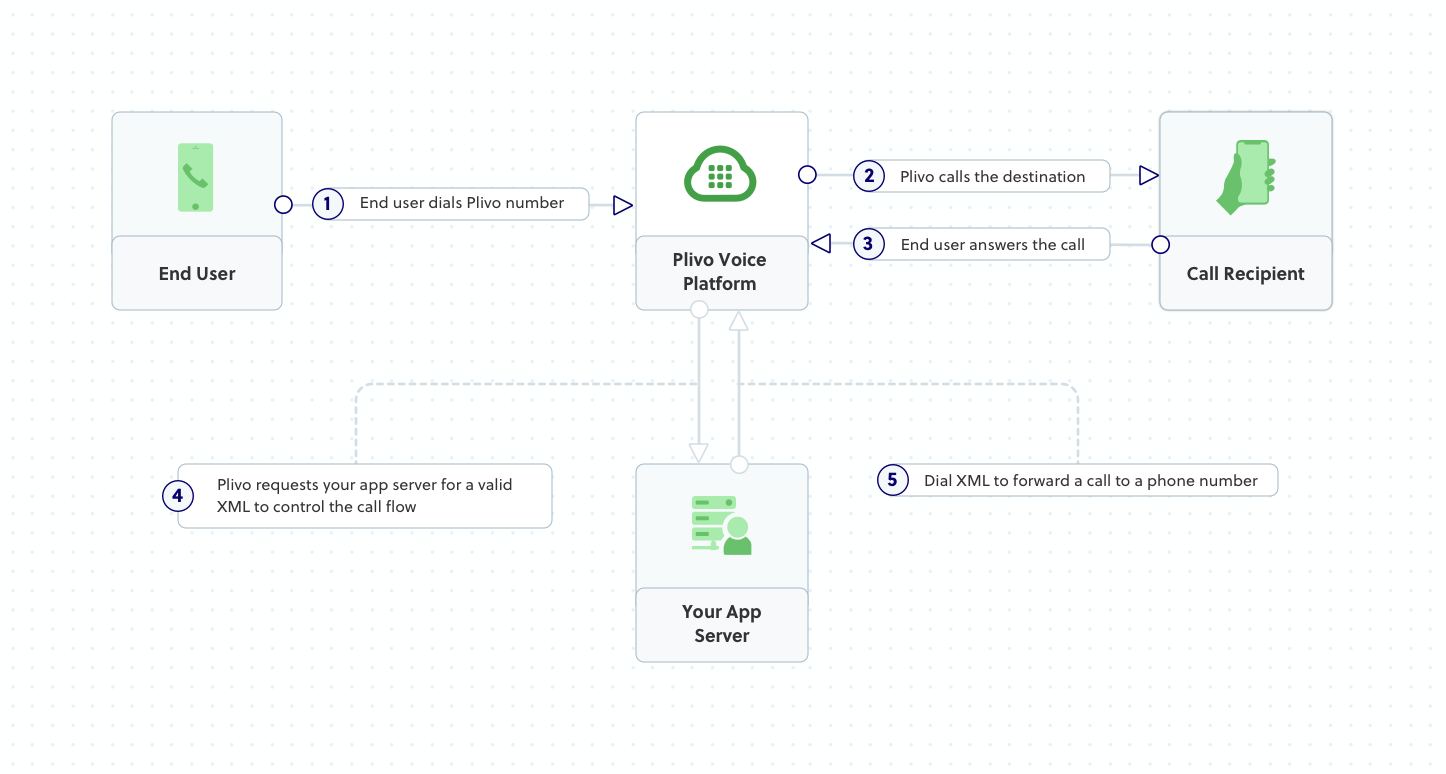
How it works
Prerequisites
To get started, you need a Plivo account — sign up with your work email address if you don’t have one already. You must have a voice-enabled Plivo phone number to receive incoming calls; you can rent numbers from the Numbers page of the Plivo console, or by using the Numbers API. If this is your first time using Plivo APIs, follow our instructions to set up a Node.js development environment and a web server and safely expose that server to the internet.Create an Express server to forward incoming calls
Create a file calledforward_call.js and paste into it this code.Copy
Ask AI
var express = require('express')
var app = express()

app.post('/forward_call/', function(req, res) {
    var plivo = require('plivo');
    var response = plivo.Response();
    var dial = response.addDial();

    dial.addNumber("<destination_number>"); // call wll be forwarded to this number
    res.send(response.toXML());
})

app.set('port', (process.env.PORT || 5000));
app.listen(app.get('port'), function() {
    console.log('Node app is running on port', app.get('port'));
});
Copy
Ask AI
$ node forward_call.js
Create a Plivo application to forward calls
Associate the Go application you created with Plivo by creating a Plivo application. Visit Voice > Applications in the Plivo console and click on Add New Application, or use Plivo’s Application API.Give your application a name — we called oursForward Call. Enter the server URL you want to use (for example https://<yourdomain>.com/forward_call/) in the Answer URL field and set the method to POST. Click Create Application to save your application.Assign a Plivo number to your application
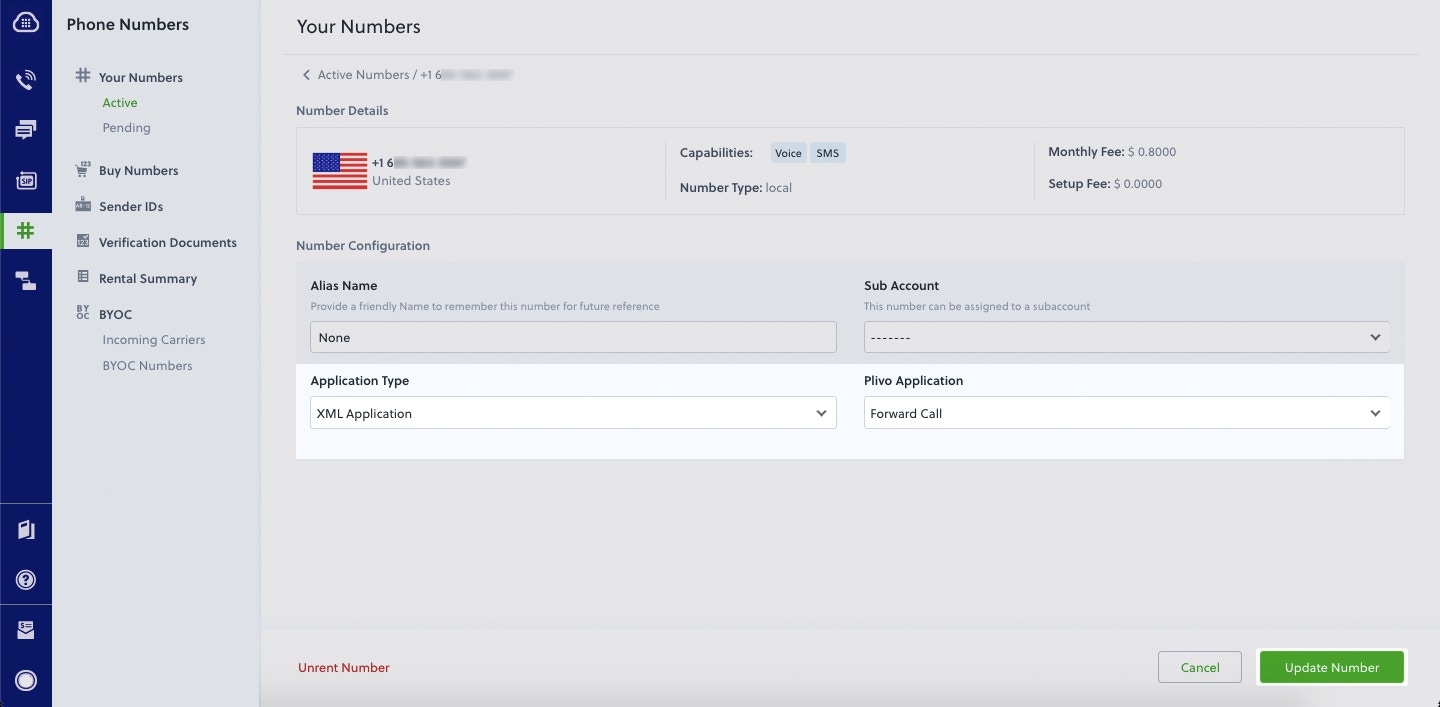
Navigate to the Numbers page and select the phone number you want to use for this application.From the Application Type drop-down, selectXML Application.From the Plivo Application drop-down, select Forward Call (the name we gave the application).Click Update Number to save.Test
Make a call to your Plivo number using any phone. Plivo will send a request to the answer URL you provided requesting an XML response and then forward the call according to the instructions in the XML document the server provides.Overview
You can use call forwarding to dynamically route incoming calls based on any of several factors.- Agent availability: You can place calls in a holding queue and route them to an available agent as soon as one is available.
- Business hours: You can route calls to an office number during business hours and to a mobile phone or voicemail during non-business hours.
- Time zones: You can forward calls to agents from different time zones to ensure round-the-clock availability.
- Using XML
Here‘s how to use Plivo XML to forward calls.
How it works
Prerequisites
To get started, you need a Plivo account — sign up with your work email address if you don’t have one already. You must have a voice-enabled Plivo phone number to receive incoming calls; you can rent numbers from the Numbers page of the Plivo console, or by using the Numbers API. If this is your first time using Plivo APIs, follow our instructions to set up a Ruby development environment and a web server and safely expose that server to the internet.Create a Rails controller to forward incoming calls
Edit the app/controllers/plivo_controller.rb file and add this code in the PlivoController class:Copy
Ask AI
def forward
   response = Response.new
   dial = response.addDial()
   dest_number = "<destination_number>"
   dial.addNumber(dest_number)

   xml = PlivoXML.new(response)
   puts xml.to_xml
   render xml: xml.to_xml
 end
Add a route
Add a route for the inbound function in the PlivoController class. Edit config/routes.rb and add this line after the inbound route:Copy
Ask AI
get 'plivo/forward'
Copy
Ask AI
$ rails server
Create a Plivo application to forward calls
Associate the Rails server you created with Plivo by creating a Plivo application. Visit Voice > Applications in the Plivo console and click on Add New Application, or use Plivo’s Application API.Give your application a name — we called oursForward Call. Enter the server URL you want to use (for example https://<yourdomain>.com/forward_call/) in the Answer URL field and set the method to POST. Click Create Application to save your application.Assign a Plivo number to your application
Navigate to the Numbers page and select the phone number you want to use for this application.From the Application Type drop-down, selectXML Application.From the Plivo Application drop-down, select Forward Call (the name we gave the application).Click Update Number to save.Test
Make a call to your Plivo number using any phone. Plivo will send a request to the answer URL you provided requesting an XML response and then forward the call according to the instructions in the XML document the server provides.Overview
You can use call forwarding to dynamically route incoming calls based on any of several factors.- Agent availability: You can place calls in a holding queue and route them to an available agent as soon as one is available.
- Business hours: You can route calls to an office number during business hours and to a mobile phone or voicemail during non-business hours.
- Time zones: You can forward calls to agents from different time zones to ensure round-the-clock availability.
- Using XML
Here‘s how to use Plivo XML to forward calls.
How it works
Prerequisites
To get started, you need a Plivo account — sign up with your work email address if you don’t have one already. You must have a voice-enabled Plivo phone number to receive incoming calls; you can rent numbers from the Numbers page of the Plivo console, or by using the Numbers API. If this is your first time using Plivo APIs, follow our instructions to set up a Python development environment and a web server and safely expose that server to the internet.Create a Flask server to forward incoming calls
Create a file calledforward_call.py and paste into it this code.Copy
Ask AI
from flask import Flask, request, make_response, Response
from plivo import plivoxml

app = Flask(__name__)

@app.route('/forward_call/', methods=['GET', 'POST'])
def forwardcall():

    response = plivoxml.ResponseElement()
    response.add(
        plivoxml.DialElement().add(
            plivoxml.NumberElement('<destination_number>'))) // call wll be forwarded to this number
    return(response.to_string())

if __name__ == '__main__':
    app.run(host='0.0.0.0', debug=True)
Copy
Ask AI
$ python forward_call.py
Create a Plivo application to forward calls
Associate the Python application you created with Plivo by creating a Plivo application. Visit Voice > Applications in the Plivo console and click on Add New Application, or use Plivo’s Application API.Give your application a name — we called oursForward Call. Enter the server URL you want to use (for example https://<yourdomain>.com/forward_call/) in the Answer URL field and set the method to POST. Click Create Application to save your application.Assign a Plivo number to your application
Navigate to the Numbers page and select the phone number you want to use for this application.From the Application Type drop-down, selectXML Application.From the Plivo Application drop-down, select Forward Call (the name we gave the application).Click Update Number to save.Test
Make a call to your Plivo number using any phone. Plivo will send a request to the answer URL you provided requesting an XML response and then forward the call according to the instructions in the XML document the server provides.Overview
You can use call forwarding to dynamically route incoming calls based on any of several factors.- Agent availability: You can place calls in a holding queue and route them to an available agent as soon as one is available.
- Business hours: You can route calls to an office number during business hours and to a mobile phone or voicemail during non-business hours.
- Time zones: You can forward calls to agents from different time zones to ensure round-the-clock availability.
- Using XML
Here‘s how to use Plivo XML to forward calls.
How it works
Prerequisites
To get started, you need a Plivo account — sign up with your work email address if you don’t have one already. You must have a voice-enabled Plivo phone number to receive incoming calls; you can rent numbers from the Numbers page of the Plivo console, or by using the Numbers API. If this is your first time using Plivo APIs, follow our instructions to set up a PHP development environment and a web server and safely expose that server to the internet.Create a Laravel server to forward incoming calls
Change to the project directory and run this command to create a Laravel controller for inbound calls.Copy
Ask AI
$ php artisan make:controller VoiceController
Copy
Ask AI
<?php

namespace App\Http\Controllers;
require '../../vendor/autoload.php';
use Plivo\RestClient;
use Plivo\XML\Response;
use Illuminate\Http\Request;

class VoiceController extends Controller
{
    // Dial XML to forward the incoming call
    public function forwardCall()
    {
        $response = new Response();
        $params = array(
            'action' => "https://<yourdomain>.com/dial_status/",
            'method' => "POST",
            'redirect' => "true"
        );
        $dial = $response->addDial($params);
        $number = "<destination_number>";  // call will be forwarded to this number
        $dial->addNumber($number);
        Header('Content-type: text/xml');
        echo $response->toXML();
    }
}
Create a Plivo application to forward calls
Associate the Laravel server you created with Plivo by creating a Plivo application. Visit Voice > Applications in the Plivo console and click on Add New Application, or use Plivo’s Application API.Give your application a name — we called oursForward Call. Enter the server URL you want to use (for example https://<yourdomain>.com/forward_call/) in the Answer URL field and set the method to POST. Click Create Application to save your application.Assign a Plivo number to your application
Navigate to the Numbers page and select the phone number you want to use for this application.From the Application Type drop-down, selectXML Application.From the Plivo Application drop-down, select Forward Call (the name we gave the application).Click Update Number to save.Test
Make a call to your Plivo number using any phone. Plivo will send a request to the answer URL you provided requesting an XML response and then forward the call according to the instructions in the XML document the server provides.Overview
You can use call forwarding to dynamically route incoming calls based on any of several factors.- Agent availability: You can place calls in a holding queue and route them to an available agent as soon as one is available.
- Business hours: You can route calls to an office number during business hours and to a mobile phone or voicemail during non-business hours.
- Time zones: You can forward calls to agents from different time zones to ensure round-the-clock availability.
- Using XML
Here‘s how to use Plivo XML to forward calls.
How it works
Prerequisites
To get started, you need a Plivo account — sign up with your work email address if you don’t have one already. You must have a voice-enabled Plivo phone number to receive incoming calls; you can rent numbers from the Numbers page of the Plivo console, or by using the Numbers API. If this is your first time using Plivo APIs, follow our instructions to set up a .NET development environment and a web server and safely expose that server to the internet.Create an MVC controller to forward incoming calls
In Visual Studio, create a new project. Use the template for Web Application (Model-View-Controller). Navigate to the Controllers directory and create a controller calledForwardcallController.cs, and paste into it this code.Copy
Ask AI
using System;
using Plivo.XML;
using System.Collections.Generic;
using Microsoft.AspNetCore.Mvc;

namespace Receivecall
{
	public class ForwardcallController : Controller
	{
		public IActionResult Index()
		{
			Plivo.XML.Response resp = new Plivo.XML.Response();
			Plivo.XML.Dial dial = new Plivo.XML.Dial(new
				Dictionary<string, string>() {
			});

			dial.AddNumber("<destination_number>",
				new Dictionary<string, string>() { });
			resp.Add(dial);

			var output = resp.ToString();
			Console.WriteLine(output);

			return this.Content(output, "text/xml");
		}
	}
}
Create a Plivo application to forward calls
Associate the .NET application you created with Plivo by creating a Plivo application. Visit Voice > Applications in the Plivo console and click on Add New Application, or use Plivo’s Application API.Give your application a name — we called oursForward Call. Enter the server URL you want to use (for example https://<yourdomain>.com/forward_call/) in the Answer URL field and set the method to POST. Click Create Application to save your application.Assign a Plivo number to your application
Navigate to the Numbers page and select the phone number you want to use for this application.From the Application Type drop-down, selectXML Application.From the Plivo Application drop-down, select Forward Call (the name we gave the application).Click Update Number to save.Test
Make a call to your Plivo number using any phone. Plivo will send a request to the answer URL you provided requesting an XML response and then forward the call according to the instructions in the XML document the server provides.Overview
You can use call forwarding to dynamically route incoming calls based on any of several factors.- Agent availability: You can place calls in a holding queue and route them to an available agent as soon as one is available.
- Business hours: You can route calls to an office number during business hours and to a mobile phone or voicemail during non-business hours.
- Time zones: You can forward calls to agents from different time zones to ensure round-the-clock availability.
- Using XML
Here‘s how to use Plivo XML to forward calls.
How it works
Prerequisites
To get started, you need a Plivo account — sign up with your work email address if you don’t have one already. You must have a voice-enabled Plivo phone number to receive incoming calls; you can rent numbers from the Numbers page of the Plivo console, or by using the Numbers API. If this is your first time using Plivo APIs, follow our instructions to set up a Java development environment and a web server and safely expose that server to the internet.Create a Java server to forward incoming calls
Create a Java class calledForwardCall and paste into it this code.Copy
Ask AI
import static spark.Spark.*;
import com.plivo.api.xml.Dial;
import com.plivo.api.xml.Number;
import com.plivo.api.xml.Response;

public class forwardcall {
    public static void main(String[] args) {
        get("/forward_call/", (request, response) -> {
            String from_number = request.queryParams("From");
            response.type("application/xml");
            Response res = new Response()
                    .children(
                    new Dial()
                            .callerId(from_number)
                            .children(
                                    new Number("<destination_number>")
                            )
                    );
            // Returns the XML
            return res.toXmlString();
        });
    }
}
Create a Plivo application to forward calls
Associate the Java application you created with Plivo by creating a Plivo application. Visit Voice > Applications in the Plivo console and click on Add New Application, or use Plivo’s Application API.Give your application a name — we called oursForward Call. Enter the server URL you want to use (for example https://<yourdomain>.com/forward_call/) in the Answer URL field and set the method to POST. Click Create Application to save your application.Assign a Plivo number to your application
Navigate to the Numbers page and select the phone number you want to use for this application.From the Application Type drop-down, selectXML Application.From the Plivo Application drop-down, select Forward Call (the name we gave the application).Click Update Number to save.Test
Make a call to your Plivo number using any phone. Plivo will send a request to the answer URL you provided requesting an XML response and then forward the call according to the instructions in the XML document the server provides.Overview
You can use call forwarding to dynamically route incoming calls based on any of several factors.- Agent availability: You can place calls in a holding queue and route them to an available agent as soon as one is available.
- Business hours: You can route calls to an office number during business hours and to a mobile phone or voicemail during non-business hours.
- Time zones: You can forward calls to agents from different time zones to ensure round-the-clock availability.
- Using XML
Here‘s how to use Plivo XML to forward calls.
How it works
Prerequisites
To get started, you need a Plivo account — sign up with your work email address if you don’t have one already. You must have a voice-enabled Plivo phone number to receive incoming calls; you can rent numbers from the Numbers page of the Plivo console, or by using the Numbers API. If this is your first time using Plivo APIs, follow our instructions to set up a Go development environment and a web server and safely expose that server to the internet.Create a Go server to forward incoming calls
Create a file calledforward_call.go and paste into it this code.Copy
Ask AI
package main

import (
	"net/http"
	"plivo-go/xml"
)

func handler(w http.ResponseWriter, r *http.Request) {
	response := xml.ResponseElement{
		Contents: []interface{}{
			new(xml.DialElement).
				SetContents(
					[]interface{}{
						new(xml.NumberElement).
							SetContents("<destination_number>"),
					},
				),
		},
	}
	w.Write([]byte(response.String()))
}

func main() {
	http.HandleFunc("/forward_call/", handler)
	http.ListenAndServe(":8080", nil)
}
Copy
Ask AI
$ go run forward_call.go
Create a Plivo application to forward calls
Associate the Go application you created with Plivo by creating a Plivo application. Visit Voice > Applications in the Plivo console and click on Add New Application, or use Plivo’s Application API.Give your application a name — we called oursForward Call. Enter the server URL you want to use (for example https://<yourdomain>.com/forward_call/) in the Answer URL field and set the method to POST. Click Create Application to save your application.Assign a Plivo number to your application
Navigate to the Numbers page and select the phone number you want to use for this application.From the Application Type drop-down, selectXML Application.From the Plivo Application drop-down, select Forward Call (the name we gave the application).Click Update Number to save.