Install Ruby, Rails, and the Plivo Ruby SDK
You must set up and install Ruby, Rails, and Plivo’s Ruby SDK before you make your first call.Install Ruby
Download and install Ruby from its official site.Install Rails
Create a Rails project
Create a Rails project to autogenerate code in the Ruby on Rails folder structure.This command creates a plivotest directory with the necessary folders and files for development.Install the Plivo Ruby SDK
Edit the Gemfile and add this line.Then install the Plivo Ruby gem into the bundle.Once you’ve set up your development environment, you can start making and receiving calls using our APIs and XML documents. Here are three common use cases to get you started.Make your first outbound call
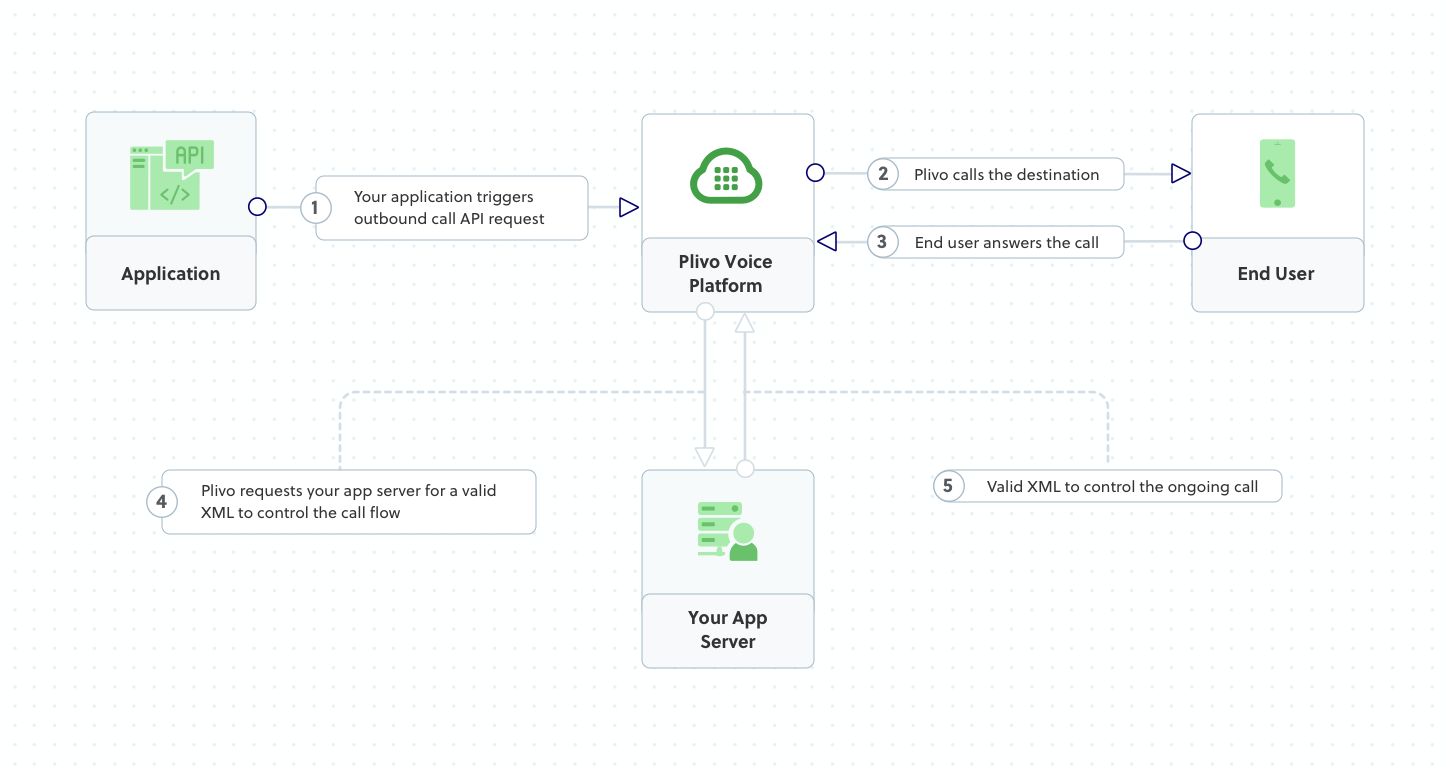
Plivo requests an answer URL when the call is answered (step 4) and expects the file at that address to hold a valid XML response from the application with instructions on how to handle the call. To see how this works, you can use https://s3.amazonaws.com/static.plivo.com/answer.xml as an answer URL to test your first outgoing call. The file contains this XML code:<Response>
<Speak>Congratulations! You've made your first outbound call!</Speak>
</Response>
Create a Rails controller to handle outbound calls
Run this command in the project directory.$ rails generate controller Plivo voice
$ rm app/views/plivo/voice.html.erb
include Plivo
include Plivo::Exceptions

class PlivoController < ApplicationController
 def outbound
   api = RestClient.new("<auth_id>","<auth_token>")
   response = api.calls.create(
     '<caller_id>',
     ['<destination_number>'],
     'https://s3.amazonaws.com/static.plivo.com/answer.xml'
   )
   puts response
   render json: response.to_s
 end
end
Note:
We recommend that you store your credentials in the auth_id and auth_token environment variables to avoid the possibility of accidentally committing them to source control. If you do this, you can initialize the client with no arguments and Plivo will automatically fetch the values from the environment variables. You can use ENV to store environment variables and retrieve them when initializing the client.
Add a route
Edit config/routes.rb and change the linetoTest
Run your code.Receive your first inbound call
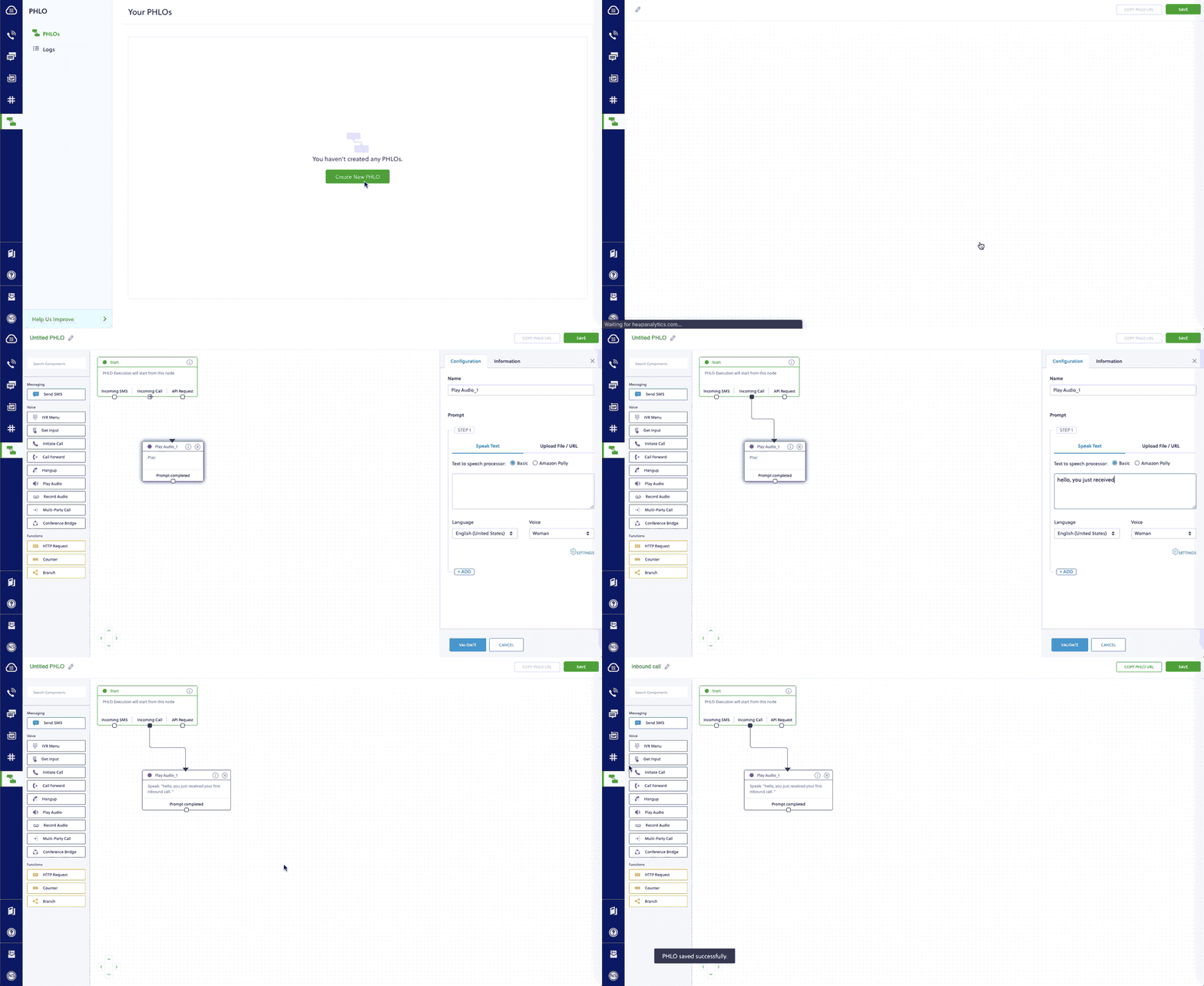
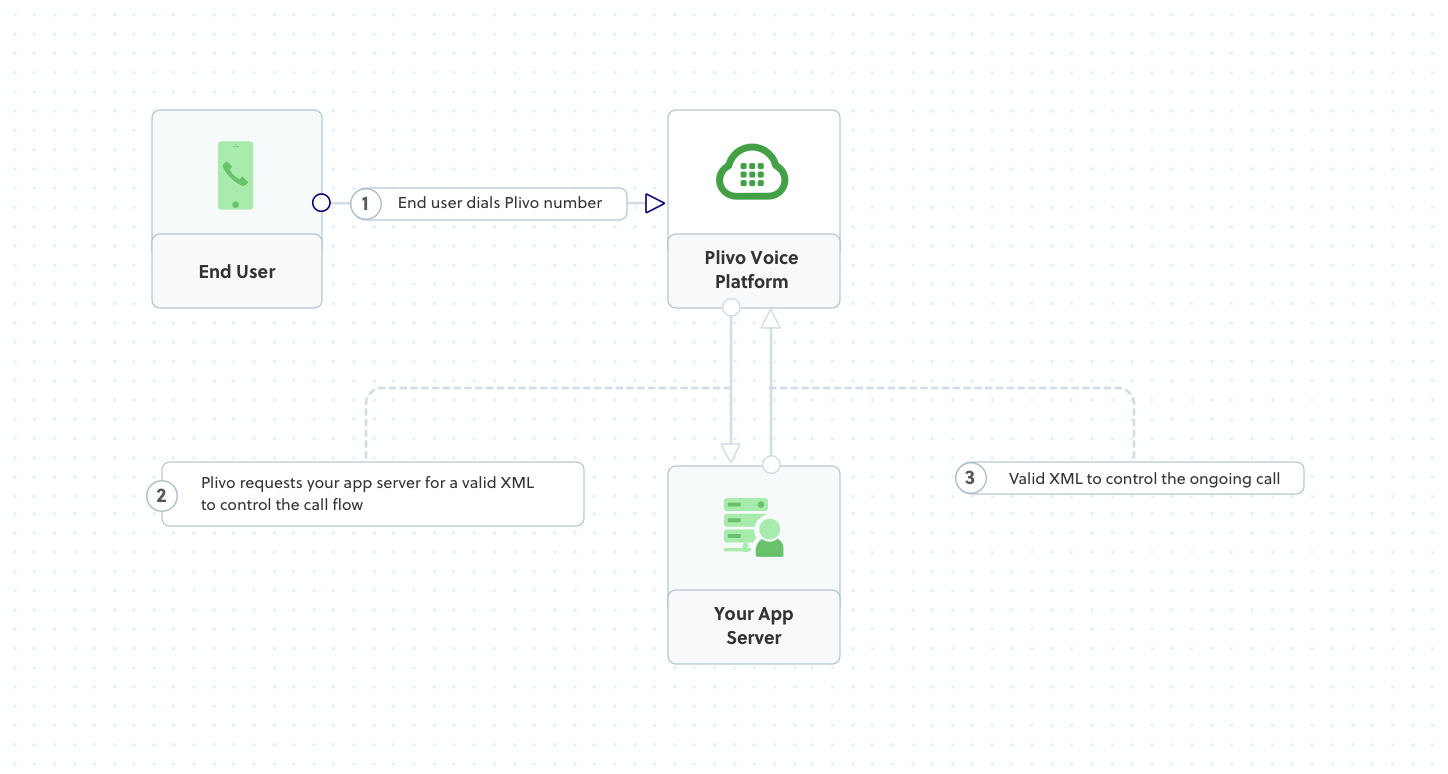
Plivo requests an answer URL when it answers the call (step 2) and expects the file at that address to hold a valid XML response from the application with instructions on how to handle the call. In this example, when an incoming call is received, Plivo’s text-to-speech engine plays a message using the Speak XML element.You must have a voice-enabled Plivo phone number to receive incoming calls; you can rent numbers from the Numbers page of the Plivo console, or by using the Numbers API.Set up a Rails server to handle incoming calls
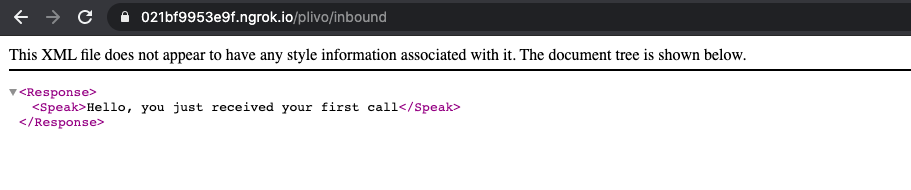
Edit app/controllers/plivo_controller.rb and paste this code into the PlivoController class after the outbound function.def inbound
response = Response.new
speak_body = 'Hello, you just received your first call'
response.addSpeak(speak_body)
xml = Plivo::PlivoXML.new(response)
render xml: xml.to_xml
end
Add a route
Edit config/routes.rb and and add this line after the outbound route.Run your code.You should see your basic server application in action at http://localhost:3000/plivo/inbound/.Expose your local server to the internet
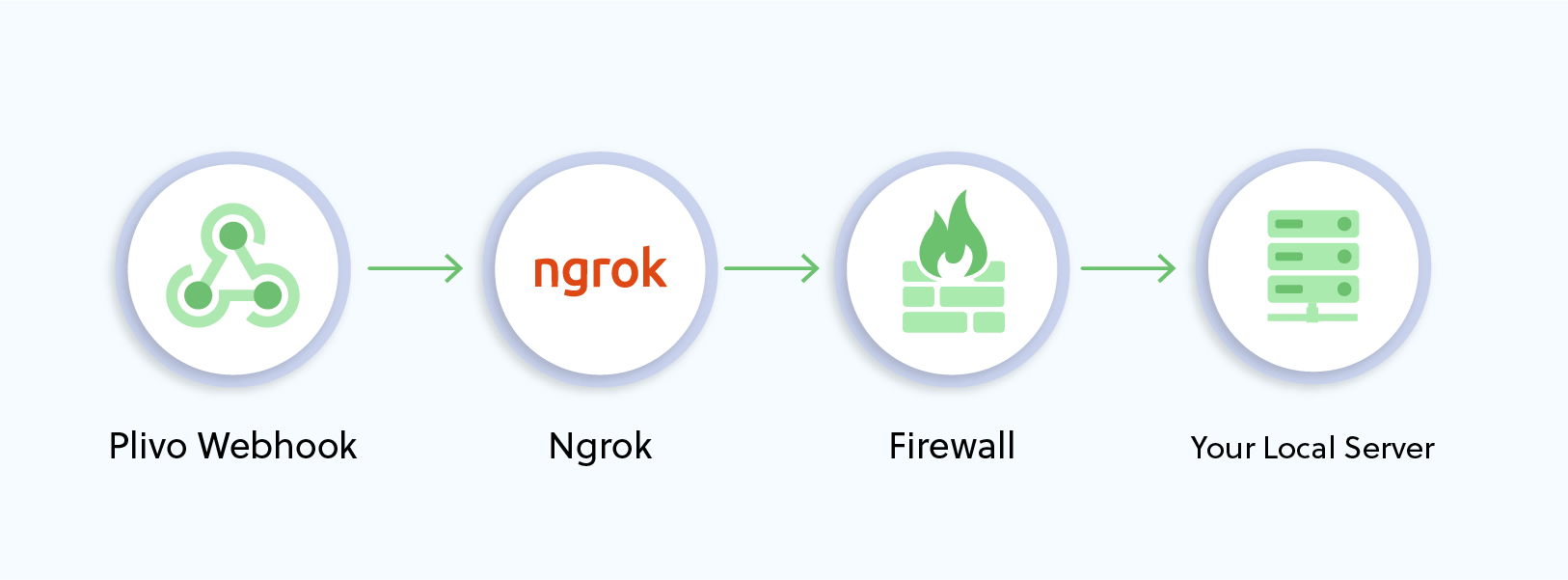
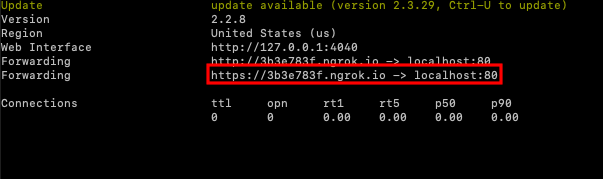
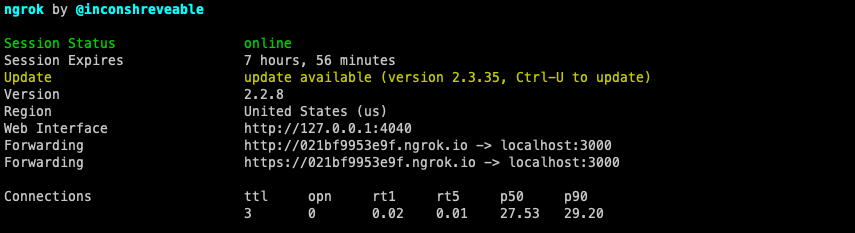
To receive incoming calls, your local server must connect with Plivo API services. For that, we recommend using ngrok, which exposes local servers running behind NATs and firewalls to the public internet over secure tunnels. Using ngrok, you can set webhooks that can talk to the Plivo server.Note: Before starting the service, add ngrok in the config.hosts list in the config/environments/development.rb file in your project. You will see Blocked host errors if you fail to do this.
# Whitelist ngrok domain
config.hosts << /[a-z0-9]+\.ngrok\.io/
Create a Plivo application to receive calls
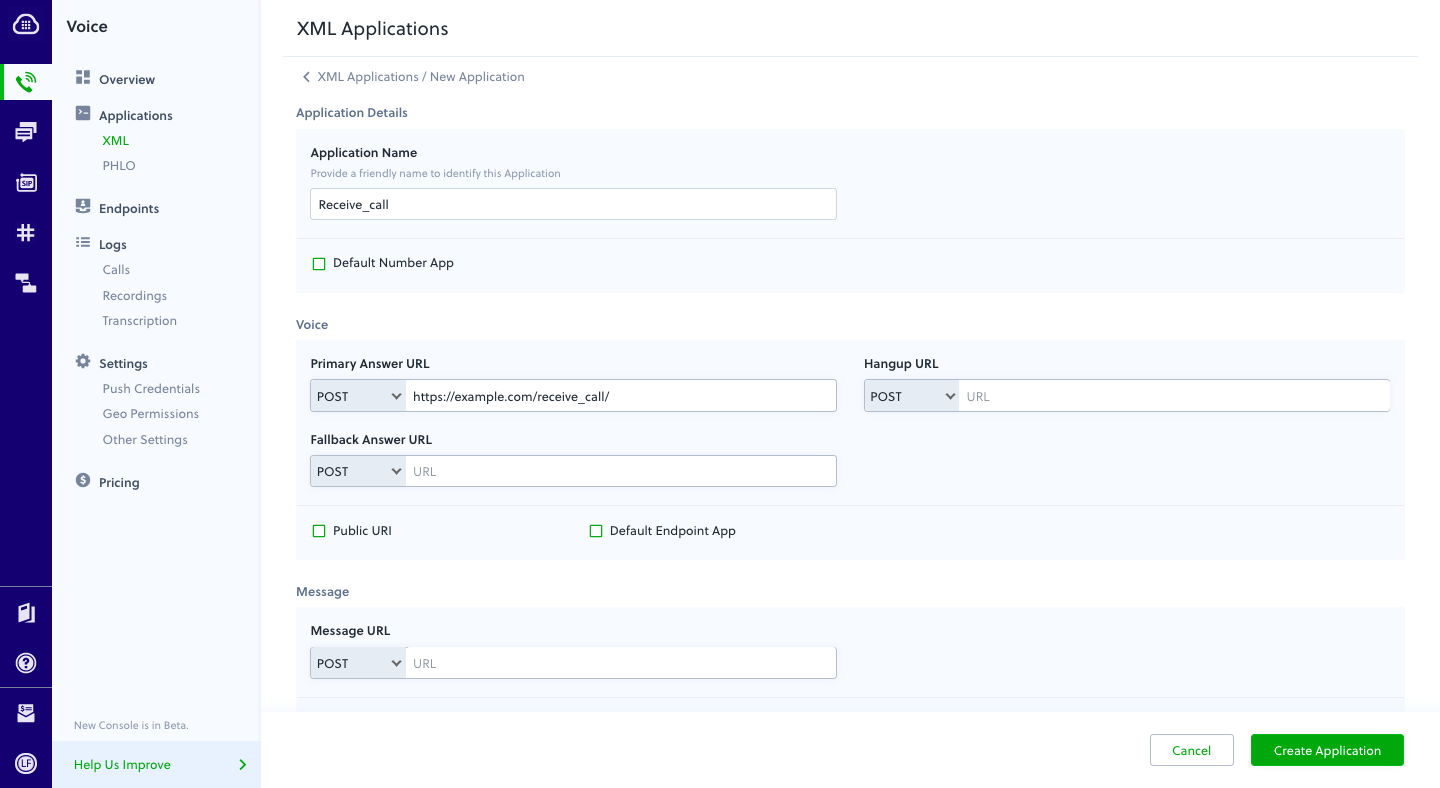
Associate the Rails application you created with Plivo by creating a Plivo application. Visit Voice > Applications and click Add New Application. You can also use Plivo’s Application API.Give your application a name — we called ours Receive_call. Enter the server URL you want to use (for example https://<yourdomain>.com/receive_call/) in the Primary Answer URL field and set the method to POST. Click Create Application to save your application.Assign a Plivo number to your application
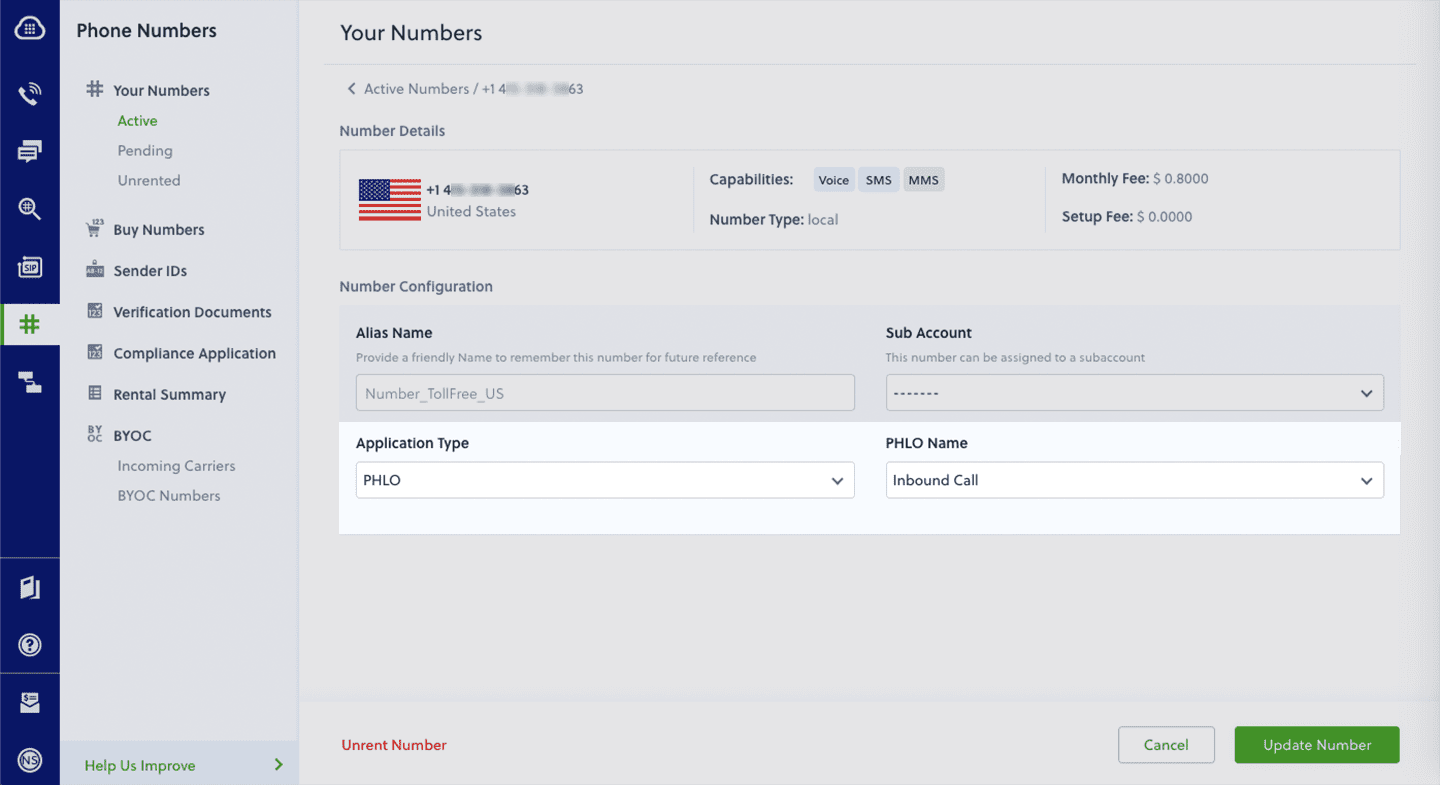
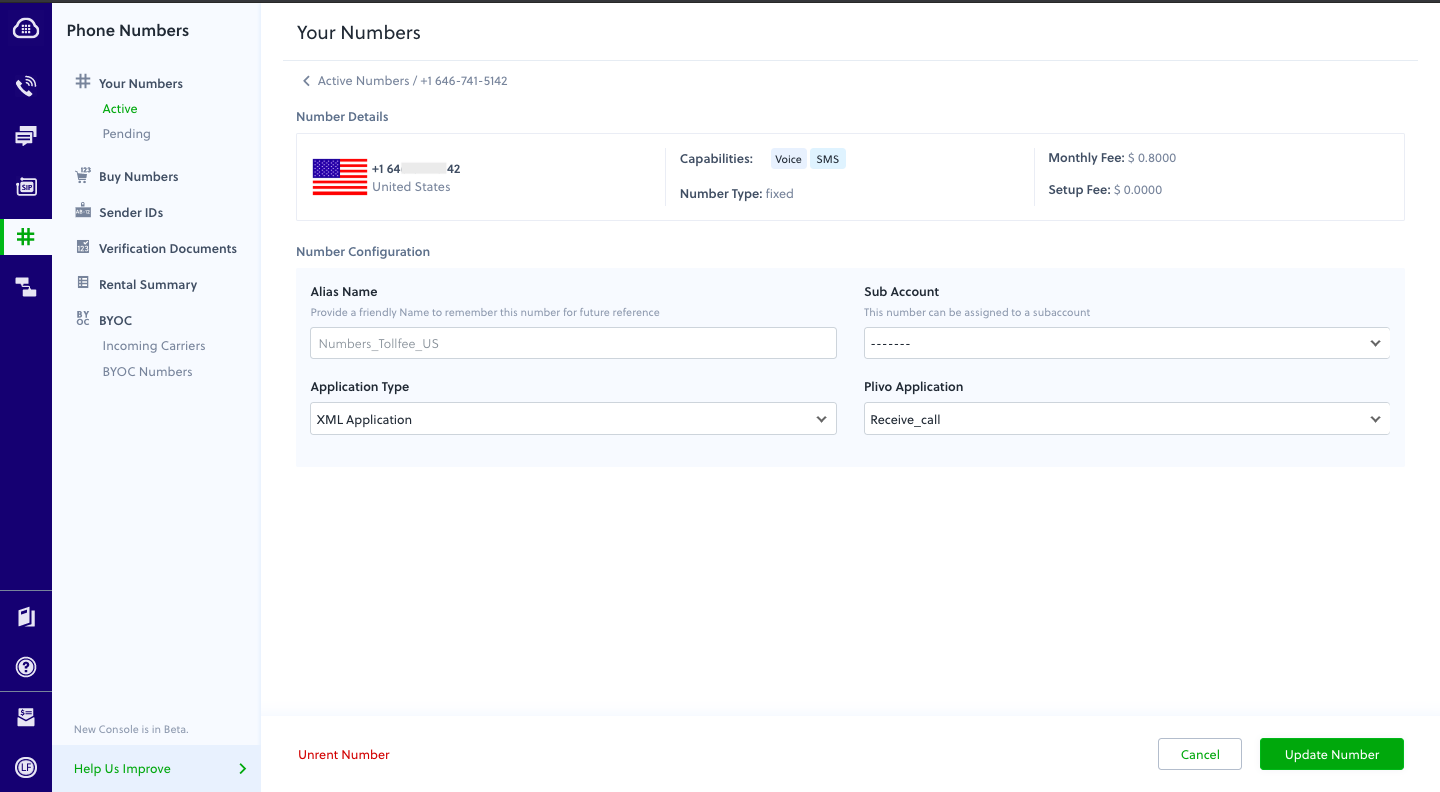
Navigate to the Numbers page and select the phone number you want to use for this application.From the Application Type drop-down, select XML Application.From the Plivo Application drop-down, select Receive_call (the name we gave the application).Click Update Number to save.Test
Make a call to your Plivo number using any phone.Forward an incoming call
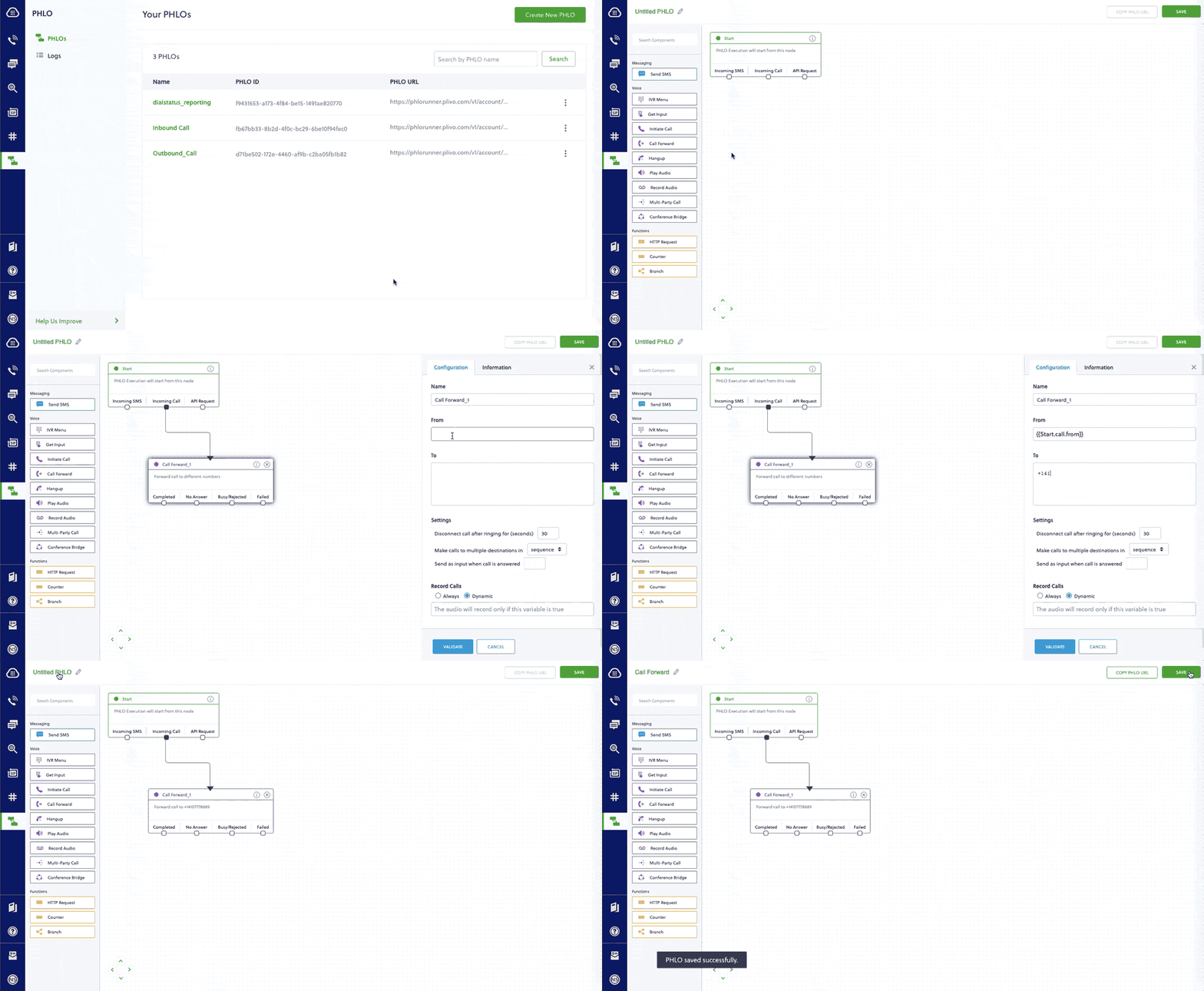
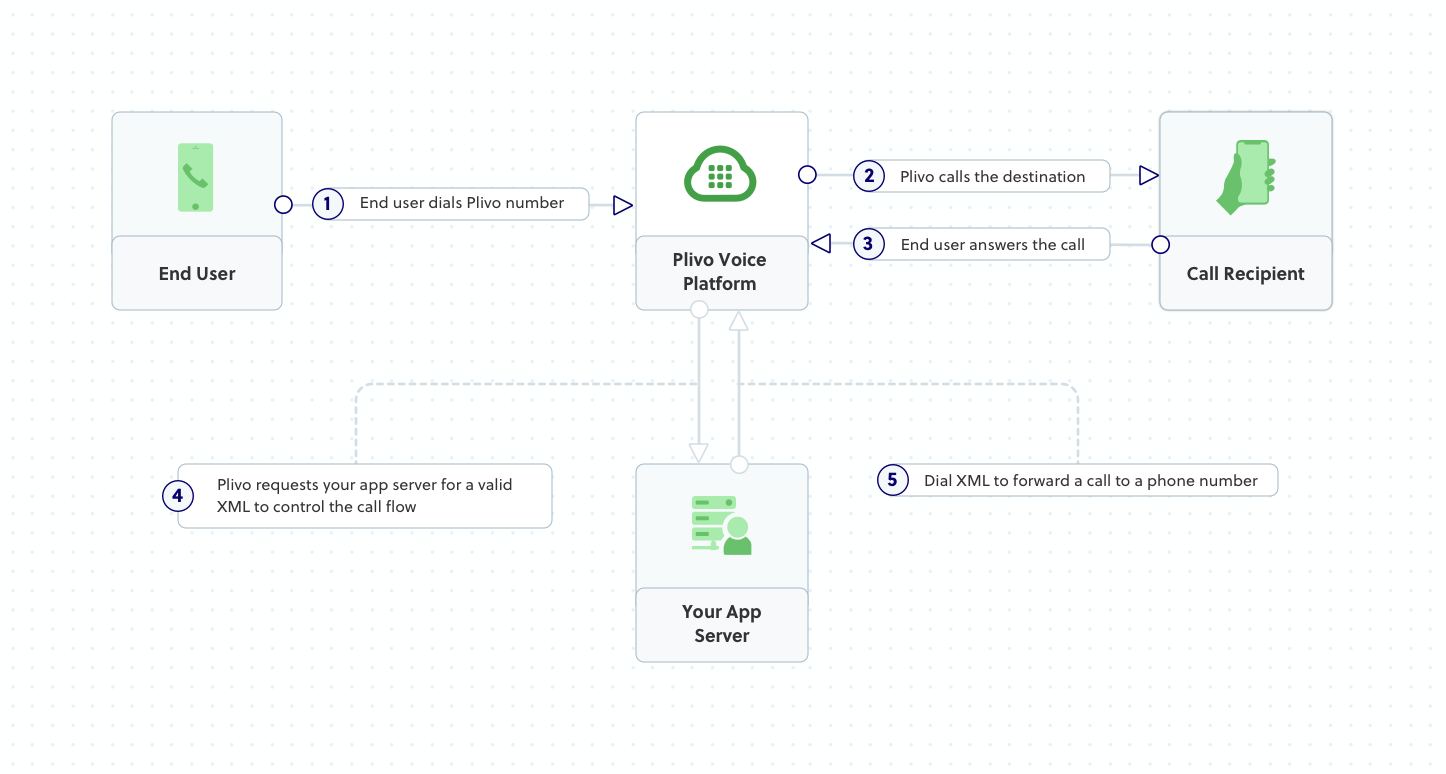
Plivo requests an answer URL when the call is answered (step 4) and expects the file at that address to hold a valid XML response from the application with instructions on how to handle the call. In this example, when an incoming call is received, Plivo forwards the call using the Dial XML element.You must have a voice-enabled Plivo phone number to receive incoming calls; you can rent numbers from the Numbers page of the Plivo console, or by using the Numbers API.Set up a Rails server to forward calls
Edit app/controllers/plivo_controller.rb and paste this code into the PlivoController class after the inbound function we added earlier.def forward
response = Response.new
dial = response.addDial()
dest_number = "<destination_number>"
dial.addNumber(dest_number)
xml = PlivoXML.new(response)
puts xml.to_xml
render xml: xml.to_xml
end
Add a route
Edit config/routes.rb and and add this line after the inbound route.If you haven’t done so already, expose your local server to the internet.Create a Plivo application to forward calls
Associate the Ruby application you created with Plivo by creating a Plivo application. Visit Voice > Applications in the Plivo console and click on Add New Application, or use Plivo’s Application API.Give your application a name — we called ours Forward Call. Enter the server URL you want to use (for example https://<yourdomain>.com/forward_call/) in the Answer URL field and set the method to POST. Click Create Application to save your application.Assign a Plivo number to your application
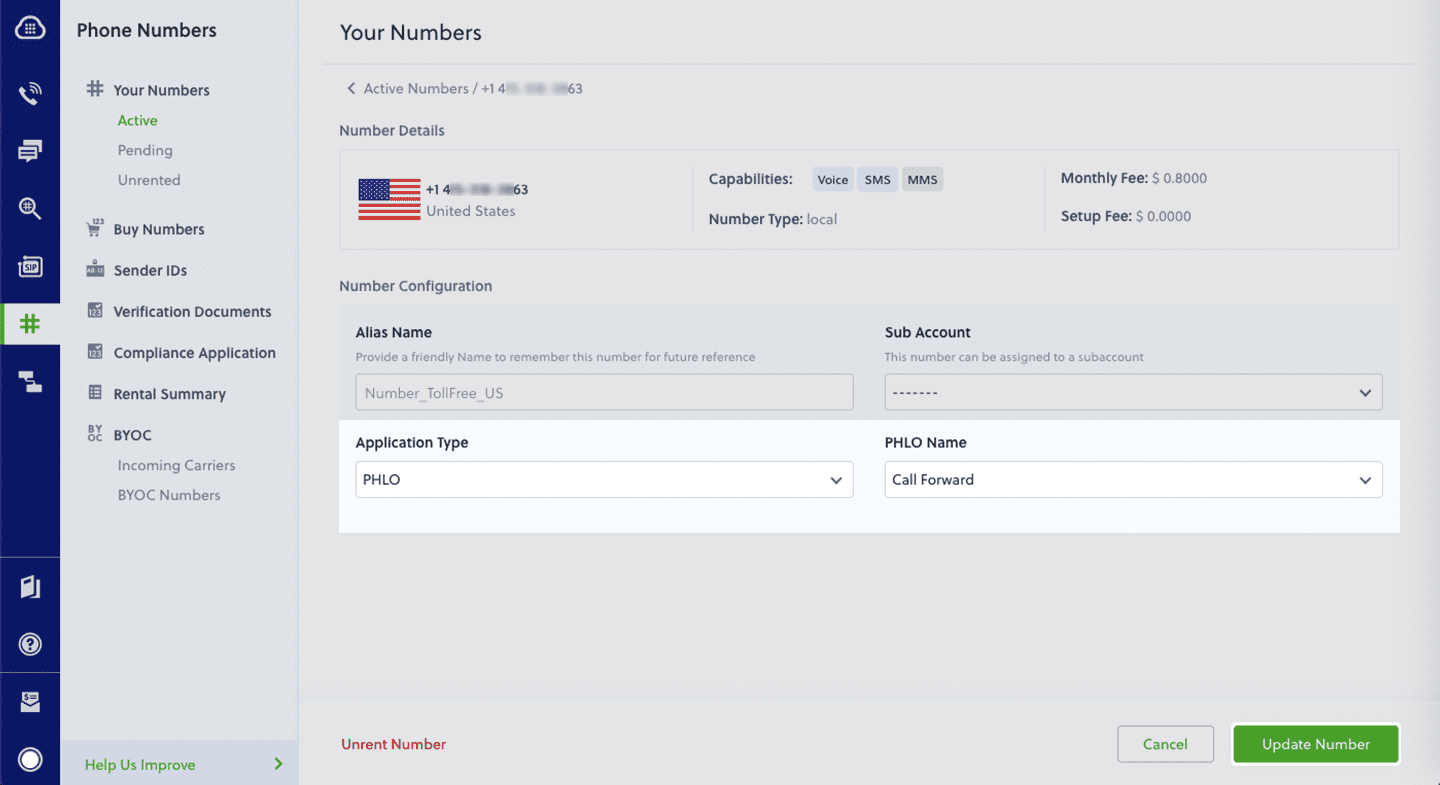
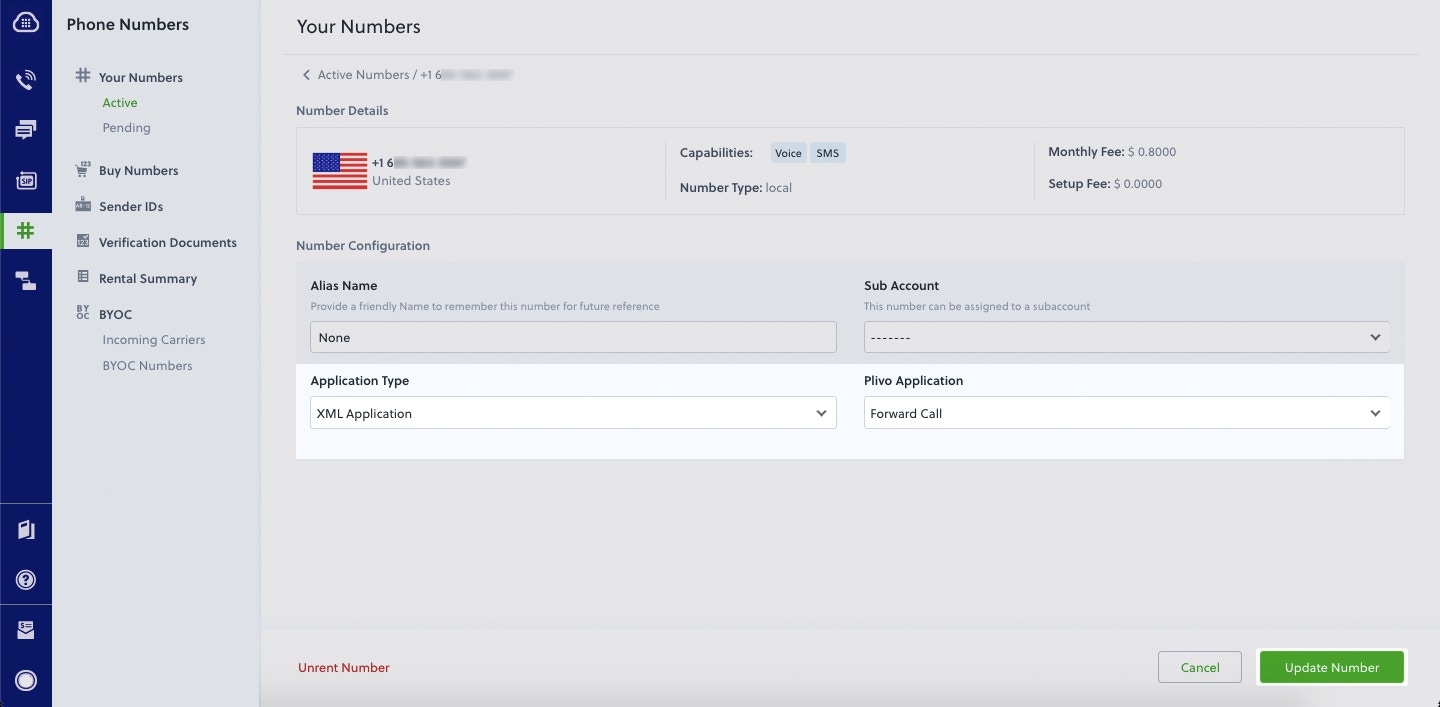
Navigate to the Numbers page and select the phone number you want to use for this application.From the Application Type drop-down, select XML Application.From the Plivo Application drop-down, select Forward Call (the name we gave the application).Click Update Number to save.Test
Make a call to your Plivo number using any phone. Plivo will send a request to the answer URL you provided requesting an XML response and then forward the call according to the instructions in the XML document the server provides.More use cases
We illustrate more than 20 use cases with code for both API/XML and PHLO on our documentation pages.